3 min read · June 2, 2026
Multi-Task Like a Pro: Popout Overlays for TikTok Live
Serious TikTok Live streamers use dual-monitor setups with popout overlays. Learn how to monitor your radar and alerts without leaving your content.
Why Single-Screen Streaming Caps Your Income
If you are running TikTok Live from one screen — toggling between your stream app, chat, and notes — you are operating at a disadvantage. Top earners use dual-monitor setups where content lives on one screen and revenue tools live on another.
The difference is not cosmetic. Streamers with dedicated monitoring dashboards catch more whale joins, react to gifts faster, and maintain better chat pacing because their attention is not fragmented.
The Ideal Setup
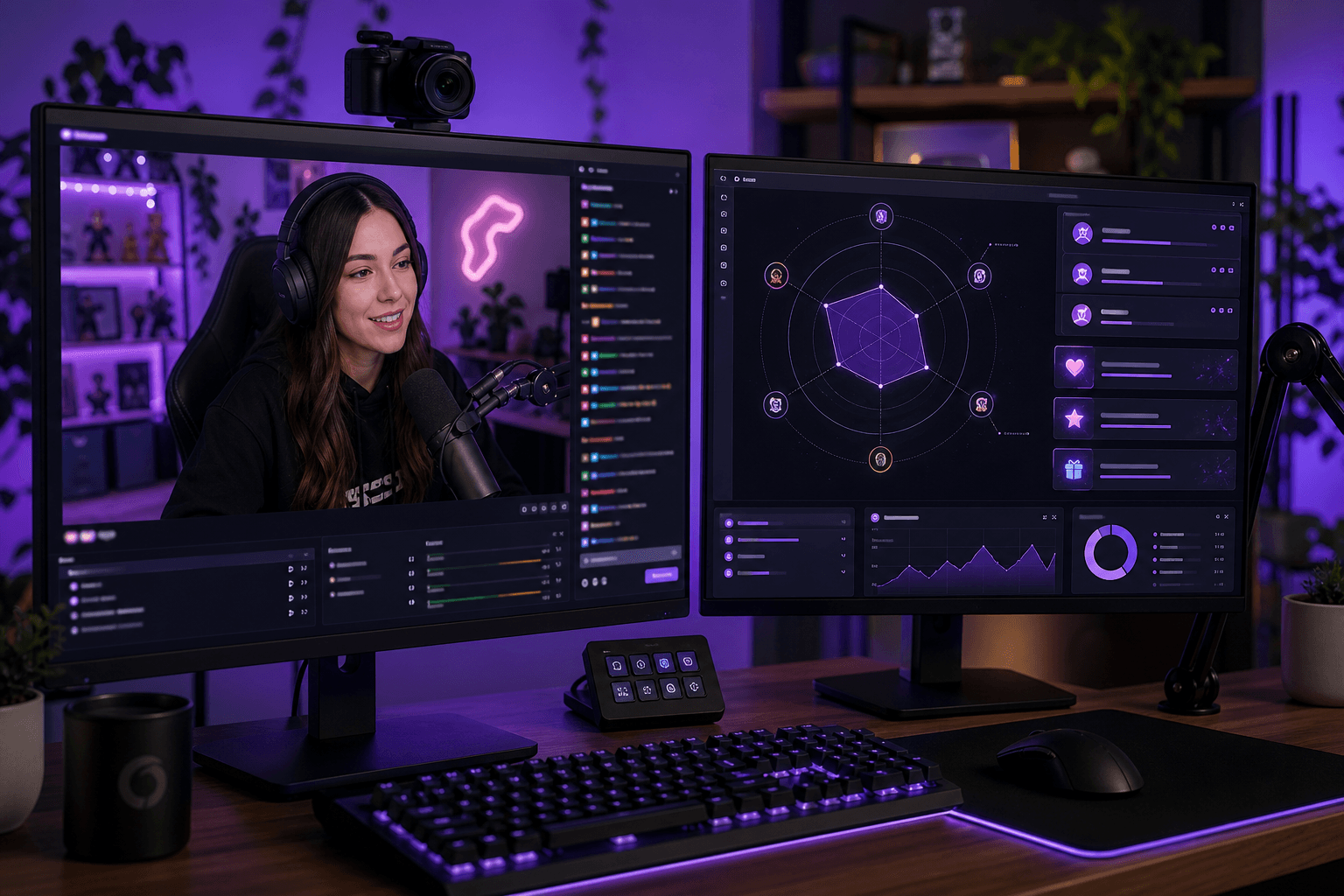
Monitor 1 (Primary): Your TikTok Live content — camera, games, battles, face-to-camera segments.
Monitor 2 (Secondary): Your Beams.live popout dashboard — viewer radar, activity feed, AI pacing prompts, and leaderboard.
This separation lets you glance at revenue-critical info without viewers seeing you look away from the camera on your main feed.
What Is Popout Mode?
Popout mode opens a stripped-down overlay window of your Beams.live dashboard — no navigation header, no distractions, just the data you need. Add ?popout=true to your dashboard URL or click the popout button in settings.
The popout window is designed to sit on your secondary monitor (or a tablet beside your setup) as a always-visible command center.
What to Monitor During Streams
Your popout overlay should show:
- Viewer Radar — top of screen, highest priority
- Live Activity Feed — recent joins, gifts, and chat events
- AI Pacing Prompts — conversation hooks when chat slows
- Session Leaderboard — top 5 gifters for battle callouts
Arrange these in order of revenue impact. Radar alerts get your immediate attention; leaderboard updates can be checked between segments.
Tablet and Phone Alternatives
No second monitor? Use a tablet or phone as your monitoring device. Open the popout URL in a mobile browser and prop it beside your streaming setup. Even a phone-sized radar feed beats no monitoring at all.
Stream Deck Integration Tips
If you use a Stream Deck or hotkeys, assign one key to focus the popout window. During battles, train yourself to glance at the radar every 30 seconds — whales often join mid-battle when gifting energy is highest.
Common Setup Mistakes
- Popout on the same screen as content — defeats the purpose; use a second device
- Too many widgets visible — keep the popout minimal; radar + feed is enough
- Forgetting to connect before going live — make dashboard connection step 1 of your pre-stream checklist
Level Up Your Hardware, Level Up Your Income
Your content gets viewers in the door. Your monitoring setup determines how many of those viewers become gifters. Popout overlays are the highest-ROI hardware upgrade because they cost nothing — just a second screen you probably already own.
Open your Beams.live popout dashboard and place it on your second monitor tonight. See pricing for Pro overlay features.
Start Your Free Viewer Radar
Join TikTok Live streamers using Beams.live to catch whale gifters, get instant alerts, and keep chat alive.